Run Social Spark for real
Take the agent you built in Lab 1 off your laptop and onto managed infrastructure, with its own identity, conversations that survive a restart, and a memory of what you like.
Lab 1 was Build: designing the agent. This lab is Scale, and Scale is specifically about where an agent runs and what it remembers: Agent Runtime (managed hosting built for agents), Agent Identity (the agent gets its own principal, not your credentials), Sessions (managed conversation state) and Memory Bank (what persists across conversations). It is not about what the agent is allowed to do (that's Govern, Lab 3) or whether it's any good, which is Optimise, Lab 4.
Agent Sandbox is the fourth piece of Scale: an isolated place to run code an agent writes for itself. Social Spark never writes code, so we don't use it and haven't tested it here. It's in the picture so you know where it sits when your own agent needs it.
The distinction that matters today: your laptop is a single process that you restart at will. Managed infrastructure scales to zero when nobody is using it, which means anything held in memory is gone, routinely, not exceptionally. Most of this lab is about that one fact.
Same shape as Lab 1: each step is a concept, a prompt for your coding agent (or a command to run), and a checkpoint that proves it worked. Code blocks are there to read and compare against. One step, Step 2, is designed to confuse you the first time; that's deliberate and it's flagged.
You don't need your own finished agent to do this lab. Catch up with the published Build checkpoint: git checkout pillar-build. Everything below works against it unchanged.
By the end you'll have a deployed agent with its own identity, reachable over the internet, remembering your preferences between conversations, with the web UI from Lab 1 talking to it, and you'll have torn it all down again.
Prerequisites
Deploying touches more of Google Cloud than local development does. Get the APIs and permissions in place first; they're the most common reason a deploy fails in a way that's hard to read.
./gcp-setup.shFirst set GCS_BUCKET_NAME in backend/social_poster/.env. Bucket names are global, so include your project ID, for example YOUR_PROJECT-social-spark. Your deployed agent keeps published posts there, because a container's own disk is wiped every time it scales to zero.
The script is idempotent, so it's safe to re-run. It reads GOOGLE_CLOUD_PROJECT and GCS_BUCKET_NAME from that .env and acts as whichever account gcloud is logged in as. For the Scale stage it:
- Checks your login. Runs
gcloud auth application-default loginif you don't have Application Default Credentials yet. It then sets your project as the ADC quota project, so API calls made with your credentials are billed and rate-limited against your project (and the "without a quota project" warning goes away). SetPERSONAL_EMAIL=you@example.comin front of the command to grant the roles below to a different account. - Enables the APIs a deploy needs: Agent Platform (
aiplatform), Cloud Build, Artifact Registry and Cloud Run to build and host the container, Secret Manager, and Cloud Resource Manager. Without that last one, the deploy fails with a403 SERVICE_DISABLEDburied in a stack trace. - Creates your bucket in
us-central1if it doesn't exist yet, private by default. - Grants you
roles/aiplatform.user, so you can call your deployed agent (see below). - Creates
social-spark-frontend@YOUR_PROJECT.iam.gserviceaccount.comand grants it the same role. This is the identity the web UI runs as on Cloud Run in Step 7. - Stores your Buffer key in Secret Manager as
buffer-api-key, read straight from your.envso it never lands in your shell history. It skips this ifBUFFER_API_KEYisn't set. - Lets your deployed agent read that secret. The agent is given only the secret's name,
BUFFER_API_KEY_SECRET=buffer-api-key, and fetches the value at runtime as its own Agent Identity. The script grants access to every Agent Identity in the project, because your agent's own identity doesn't exist until its first deploy. - Lets your deployed agent write to the bucket, the same way:
roles/storage.objectAdminfor every Agent Identity in the project.
The last two grants wait for your first deploy. They name identities that only exist once you have deployed with --agent-identity in Step 2. On a new project the script says Waiting for your first deploy: … next to them and finishes with Done for now. That is expected, not an error. You run the script again at the end of Step 2, and then those grants go through. Nothing else in it depends on them.
There's no service account for the agent itself. In Step 2, --agent-identity gives the deployed agent a principal of its own.
roles/aiplatform.user matters more than it looks
If you created your own project you're almost certainly its Owner, which grants this implicitly, so you may never notice it's needed. Anyone working in a project they don't own gets a 403 the first time they call their deployed agent. It's a classic "works on my machine" at the IAM layer.
The script prints Done. with no errors, and gcloud services list --enabled | grep cloudresourcemanager returns a line. That last API is the one that fails most confusingly if it's missing.
Deploy to Agent Runtime
One command. No Dockerfile to write, no packaging code, no container registry to manage.
A managed runtime purpose-built for agents. You hand it your project; it builds a container image from the Dockerfile already in the repo and runs it, scaling to zero when idle so an unused agent costs approximately nothing. The important part isn't the hosting; it's Agent Identity: with --agent-identity the deployed agent gets its own cryptographic principal, separate from your user account. That principal is what you grant permissions to, and it's what Lab 3's governance policies will attach to. An agent with its own identity is the difference between "a script running as you" and "a service you can reason about".
The repo root has an agents-cli-manifest.yaml. It's the file agents-cli reads to know where and how your agent runs: the deploy target, the service name and the region. pyproject.toml covers what the agent is built from; the manifest covers where it goes. Keeping them apart means changing where you deploy never touches your dependencies.
name: 'social-spark-poster'
agent_directory: 'backend/social_poster'
region: 'us-central1'
create_params:
  root_agent_name: 'social_poster'
  deployment_target: 'agent_runtime'
  is_a2a: false
agents-cli info prints what it read from it. Then deploy:
agents-cli deploy --project YOUR_PROJECT \
  --agent-identity \
  --update-env-vars "POST_VIA=linkedin,DRY_RUN=true,GCS_BUCKET_NAME=YOUR_BUCKET,PROJECT_ID=YOUR_PROJECT,ORCHESTRATOR_MODEL=gemini-2.5-flash,RESEARCH_MODEL=gemini-2.5-flash-lite,DRAFT_MODEL=gemini-2.5-pro" \
  --no-confirm-project --no-wait
What's doing the work, and one setting that's easy to get wrong:
| Setting | Why |
|---|---|
deployment_target and name (manifest) | Where to deploy and what to call it. Every deploy, --status and --list command reads them, so you never pass them as flags. |
region: 'us-central1' (manifest) | Deliberate, and the reason it lives in a file rather than your memory. Lab 3's Governance Policy engine doesn't exist in global or europe-west2, and a policy can only bind to an agent in the region it was registered in. Deploy elsewhere and you can't do Lab 3 against this agent. |
--agent-identity | Gives the deployed agent its own principal (see the theory above). It's a flag rather than a manifest field, so pass it every time. |
--update-env-vars | The deployed agent's whole configuration. Your local .env is gitignored, so it never reaches the container; only what you pass here does. DRY_RUN=true keeps LinkedIn posting simulated. GCS_BUCKET_NAME moves published posts off the container's disk. PROJECT_ID is your project ID (not the number): Cloud DLP, used by the agent's PII redaction, rejects the project number the container sees. The three *_MODEL values give each agent its own model, matched to its job: a fast orchestrator, a cheap researcher and a strong writer. Because they differ, you can tell the agents apart in logs and traces later. |
--no-wait | Deploys take 5–10 minutes and can outlive a terminal timeout. The deployment carries on server-side regardless. |
The manifest sets a default target, not the only one. agents-cli deploy -d cloud_run builds the same Dockerfile into a Cloud Run service instead (add --dry-run to see the gcloud run deploy it would run). GKE also needs a cluster and its Terraform and Kubernetes files, so it's more than a flag. We stay on Agent Runtime because Agent Identity, Sessions and Memory Bank all come with it.
Check on your deploy:
agents-cli deploy --status --project YOUR_PROJECT --no-confirm-projectOnce it says ✅ Deployment successful!, run it again. You'll get No pending deployment operation found, which looks like your agent is gone. It isn't: --status only follows up on your last deploy, and forgets it once it has reported back. To see what's actually deployed, use --list.
The lesson: read what the failing command actually checks before you start undoing work.
Your agent now has an identity, so the grants that were waiting for it can go through. From the repo root:
./gcp-setup.shThis time every line says Granted and it ends with Done.
agents-cli deploy --list --project YOUR_PROJECT --no-confirm-project shows social-spark-poster in us-central1, and the agent appears in the console under Agent Engine with an identity principal against it. Running ./gcp-setup.sh again ends with Done.
Talk to the deployed agent
Your agent is now an HTTPS endpoint. Finding it teaches you something about how Agent Runtime works.
/api passthrough
Agent Runtime exposes your container's own HTTP routes externally, under an /api prefix:
https://{region}-aiplatform.googleapis.com/reasoningEngines/v1/{resource}/api/{your_route}
This is more useful than it first appears. Your container runs backend/main.py, the same FastAPI app you ran locally in Lab 1, with the AG-UI endpoint mounted at /api/adk. So the deployed agent speaks exactly the same protocol your web UI already speaks, at .../api/api/adk (the first /api is the passthrough, the second is your own route). No adapter, no translation layer. Step 6 depends entirely on this.
# works from any folder; set ENGINE_NAME if you deployed with --service-name
ENGINE_NAME=social-spark-poster
PROJECT_NUMBER=$(gcloud projects describe "$(gcloud config get-value project 2>/dev/null)" --format='value(projectNumber)')
TOK=$(gcloud auth print-access-token)
ENGINE_ID=$(curl -s -H "Authorization: Bearer $TOK" "https://us-central1-aiplatform.googleapis.com/v1/projects/$PROJECT_NUMBER/locations/us-central1/reasoningEngines?pageSize=100" | python3 -c "import json,sys; print(next((e['name'].split('/')[-1] for e in json.load(sys.stdin).get('reasoningEngines',[]) if e.get('displayName')==sys.argv[1]), ''))" "$ENGINE_NAME")
echo "project $PROJECT_NUMBER, engine $ENGINE_ID"
BASE="https://us-central1-aiplatform.googleapis.com/reasoningEngines/v1/projects/$PROJECT_NUMBER/locations/us-central1/reasoningEngines/$ENGINE_ID/api"

curl -s -H "Authorization: Bearer $TOK" "$BASE/openapi.json" | head -c 200
That should come back starting {"openapi":"3.1.0","info":{"title":"social-agent AG-UI backend"…. Read that title carefully: it's your app's title, from your main.py. You're not talking to a generic ADK wrapper; you're talking to the thing you built, running somewhere else.
The passthrough is a Google API endpoint, so every call needs credentials. That's a feature (your agent isn't sitting on the open internet), but it has a consequence you'll hit in Step 6: a browser can't call this directly, because there's no safe way for browser JavaScript to hold that token.
openapi.json returns your app's title, and POSTing an AG-UI message to $BASE/api/adk streams back RUN_STARTED … RUN_FINISHED.
Sessions that survive
Your agent currently forgets every conversation the moment the container goes away, and on a deployment that scales to zero, that's constantly.
ADK's default session service holds conversations in process memory. Locally that's invisible: you restart the server when you choose to, and losing a chat feels like your own doing. On managed infrastructure that scales to zero, the container is destroyed whenever nobody's using it, so conversations vanish on a schedule you don't control and never see. Nothing errors. It just quietly forgets.
Sessions is the managed alternative: conversation state lives in the Agent Engine, not the container, so it outlives any individual instance.
In backend/main.py, use VertexAiSessionService instead of the default when running on Agent Runtime, and keep the in-memory default when running locally. Detect which by reading the APP_URL environment variable, which Agent Runtime injects and which contains the engine's own resource name; parse the project, location and engine id out of it. Pass the resulting service to ADKAgent.
Don't use GOOGLE_CLOUD_LOCATION as the engine's region. Your .env sets it to global, and the deploy sets it to global in the container too: that's the right location for Gemini. But the engine, its sessions and its Memory Bank live in us-central1. A session service built from GOOGLE_CLOUD_LOCATION asks global for an engine that isn't there.
GOOGLE_CLOUD_PROJECT in the container is the project number, not the ID (your local .env isn't deployed). Most Google APIs accept either, but some don't: Cloud DLP rejects the number, which is why the deploy command passes PROJECT_ID.
APP_URL, which Agent Runtime injects, carries the engine's full resource name (project number, region and engine id), so it's the reliable source for the session service. backend/main.py parses it.
# reuses PROJECT_NUMBER and ENGINE_ID from Step 3 (in a new terminal, run that block first)
: "${ENGINE_ID:?run the Step 3 block first}"
curl -s -H "Authorization: Bearer $(gcloud auth print-access-token)" \
  "https://us-central1-aiplatform.googleapis.com/v1/projects/$PROJECT_NUMBER/locations/us-central1/reasoningEngines/$ENGINE_ID/sessions?pageSize=100" \
| python3 -c "import json,sys; d=json.load(sys.stdin); s=d.get('sessions'); print(d if s is None else '\n'.join(f\"{x['name'].split('/')[-1]} {x.get('userId','')} {x.get('updateTime','')[:19]}\" for x in s))"Send a message, then list sessions: yours is there, with your user id against it. Send a second message on the same threadId from a fresh process and the agent still has the context. The real proof: come back after the engine has scaled to zero and the conversation is still there.
Memory Bank
Sessions remember a conversation. Memory Bank remembers you, across conversations.
These are genuinely different things and the names don't help. A session is one conversation: the messages, the state, the draft in progress. Memory is what survives when that conversation ends and a new one starts: your preferences, your usual topics, how you phrase things.
Memory Bank is the managed memory service: it distils facts out of finished conversations on its own, and ADK's load_memory tool searches them. It sits alongside the Lab 1 memory_agent, so you can run both.
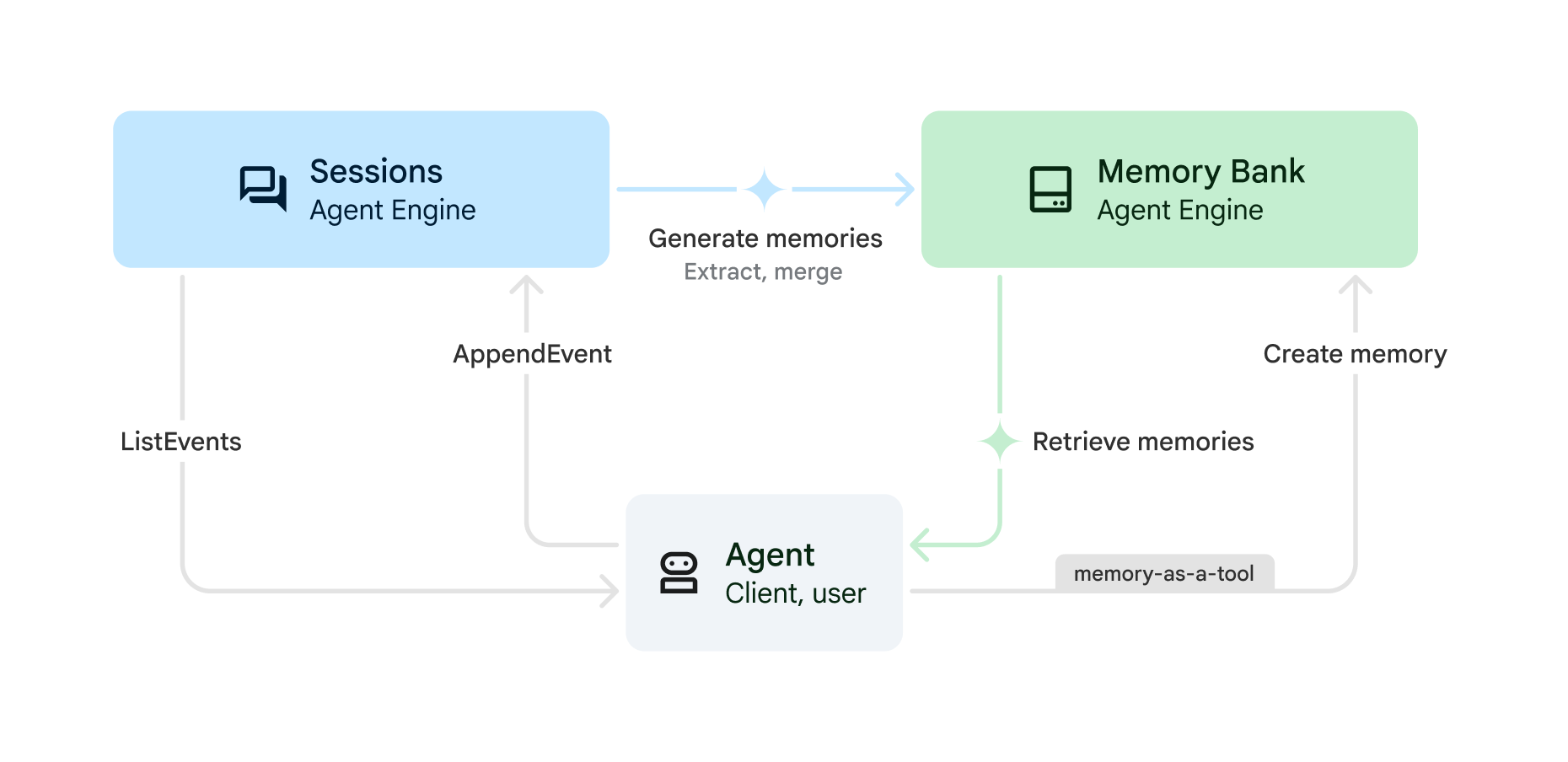
Wire VertexAiMemoryBankService into backend/main.py alongside the session service, using the same engine details. Then in backend/social_poster/agent.py, add ADK's load_memory tool to the orchestrator when memory is available, and update its instruction to consult memory before drafting. Add load_memory to the stage map so the pipeline panel shows "consulting memory".
Out of the box Memory Bank decides for itself what is worth keeping. For a social-post agent that is too vague, so configure it. The bank takes memory topics: managed ones (USER_PREFERENCES, EXPLICIT_INSTRUCTIONS, USER_PERSONAL_INFO, KEY_CONVERSATION_DETAILS) and custom ones you describe in a sentence. You can also set the extraction model, a TTL so memories expire, and few-shot examples of what to extract.
Here we keep preferences and explicit instructions, add one custom posting_style topic, and expire memories after 90 days. It is a PATCH on the engine, so no redeploy: GOOGLE_CLOUD_PROJECT=YOUR_PROJECT AGENT_ENGINE_ID=ENGINE_ID uv run python backend/memory_bank_config.py apply (and show to read it back). ENGINE_ID is the number at the end of your engine's resource name, from the deploy output or deployment_metadata.json. It only affects memories generated from then on.
Try it before you wire anything else: send the bank a short conversation through client.agent_engines.memories.generate(...) and list what it kept. In our test a message about a sign-off, an emoji rule and a question opener came back as one clean style fact.
Adding a memory service doesn't save anything to it. The app only saves a conversation to memory when it tidies up a session that has been idle for 20 minutes (it checks every 5). A deployed agent usually scales to zero before then, so that never happens: no memories, and no error.
So save to memory yourself, at a moment that matters. Here that's publishing: the conversation is finished, and what the user approved is what's worth remembering.
asyncasync def _stage_after_agent(callback_context: CallbackContext) -> None:
...
if use_memory_bank and callback_context.state.get("pipeline_stage") == "posted":
if callback_context.state.get("memory_ingested"):
return # once per conversation, not once per turn
await callback_context.add_session_to_memory()
callback_context.state["memory_ingested"] = Trueadd_session_to_memory() is async. If you call it without await, from a normal (non-async) callback, it never actually runs: no error, nothing in the logs, and a try/except won't catch anything. You just get an empty Memory Bank, the same symptom as the idle-timer problem above.
Its signature says -> None, which makes this easy to miss. Make the callback async def and await the call.
Tell the agent a preference ("I always sign off with Building in public. and never use more than two hashtags"), then publish a post in that same conversation. List memories on the engine; the preference is there as a distilled fact. Now start a brand new conversation and ask for a post on any topic: it should call load_memory and apply the preference without being told.
Point the web UI at it
The frontend from Lab 1, unchanged in every visible way, now driven by an agent running in Google Cloud.
This is where Step 3's passthrough pays off. Your deployed container serves the same AG-UI endpoint your UI already talks to, so connecting them is a URL change, not an integration project. There's no protocol bridge to write, no event translation, no re-implementing the approval flow. If that sounds anticlimactic, it should. Check whether the platform already speaks your protocol before you build an adapter for it.
ADK_BACKEND_ORIGIN=https://us-central1-aiplatform.googleapis.com/reasoningEngines/v1/projects/PROJECT_NUMBER/locations/us-central1/reasoningEngines/ENGINE_ID/apiComment that line out to go back to your local backend. That one variable is the entire difference.
The browser can't call the deployed backend directly; it can't hold the bearer token. Add same-origin Next.js route handlers that proxy to the backend server-side and attach a token from Application Default Credentials: one for AG-UI (/api/adk), one for the post list (/api/posts), and one for generated images (/outputs/[...path]). Add the token only when the target is a Google endpoint, so local development is unaffected. Pass the upstream response body straight through so SSE keeps streaming.
Do not point CopilotKit's HttpAgent straight at the deployed backend with a custom fetch that attaches the token. It works in development and drops the token in a production build, and the engine answers 401 UNAUTHENTICATED. Route AG-UI through your own handler instead.
npm run dev, open the app, and run a full post: the pipeline panel lights up Idea → Consulting memory → Researching → Drafting → Approval, the approval dialog appears, and approving completes the post. Identical to Lab 1, but the agent is in us-central1.
The app reopens your last conversation on every reload (it keeps the thread id in the browser), and signing out doesn't clear it. After a redeploy, or to show Memory Bank recalling you in a new conversation, click New chat in the header. The old conversation stays in the console's Sessions tab. An old conversation can otherwise replay a stale approval against the new deployment.
Deploy the frontend too
A deployed agent with a UI on your laptop is half a product. Put the whole thing in the cloud.
Running on Cloud Run, your frontend can't borrow your gcloud credentials; it needs an identity of its own. That's the service account gcp-setup.sh created, holding roles/aiplatform.user so it may call your agent. Your proxy code doesn't change at all: Application Default Credentials resolves to you locally and to the service account on Cloud Run, and the same code works in both places.
gcloud run deploy social-spark-frontend --source frontend \
  --region=us-central1 --project=YOUR_PROJECT \
  --service-account=social-spark-frontend@YOUR_PROJECT.iam.gserviceaccount.com \
  --no-allow-unauthenticated \
  --set-env-vars="ADK_BACKEND_ORIGIN=YOUR_PASSTHROUGH_ORIGIN" \
  --port=8080 --memory=1Gi --min-instances=0 --max-instances=3
--no-allow-unauthenticated is the important one: the service is private. Nobody who finds the URL can drive your agent, burn your model quota or publish to your accounts. Reach it like this:
gcloud run services proxy social-spark-frontend \
  --region us-central1 --project YOUR_PROJECT --port 8090
Then open http://localhost:8090. The proxy authenticates as you, so there's no OAuth setup and no public URL. For sharing it with real users, IAP is the next step, out of scope today.
The app's Google sign-in is optional by design; it falls back to "Continue as guest". So a deployed build without a client ID works fine, and you don't have to register redirect URIs mid-workshop.
Hitting the Cloud Run URL directly returns 403. Through the proxy, the app loads and completes a full post against your deployed agent. Both halves are now in the cloud.
Read the logs
Your agent is somewhere else now. Logs are how you know what it's doing, and the first thing you'll see is alarming and fine.
gcloud logging read \
  'resource.type="aiplatform.googleapis.com/ReasoningEngine"' \
--project=YOUR_PROJECT --limit=30 --format="value(severity,textPayload)"ERROR is fine. Really.
You will see a red ERROR with a full traceback ending:
ValueError: <Token var=<ContextVar name='current_context'…>> was created in a different Context
…on a request that worked perfectly. It's an OpenTelemetry quirk: ADK wraps streaming responses in a tracing span, and with server-sent events the span closes in a different async task than the one that opened it. It fires during span cleanup, after your work is done, and affects nothing.
You won't have seen it locally, because tracing is only switched on when deployed. Left unexplained, it's the kind of thing that eats an hour of a workshop, which is why it's here rather than in a footnote.
raise at import time in a deployed agent
Worth internalising now: if your module raises while being imported, the container dies before it can log why, and the platform reports a generic "failed to be updated" with no build output and no logs. An ordinary config mistake becomes indistinguishable from a platform outage. Log the problem, degrade, and stay up. You can't debug what won't start.
You can find your agent's own log lines among the platform noise, and you can tell the harmless OTel traceback from a real failure. Lines starting Sending out request, model: show all three models from Step 2 at work: gemini-2.5-flash for the orchestrator, gemini-2.5-flash-lite for research and gemini-2.5-pro for drafting.
Tear it down
Do this before you leave. Every session from here on assumes you did.
An idle Agent Runtime engine costs approximately nothing, which is exactly why it's easy to forget. But "approximately nothing" across four weeks, times everyone in this room, stops being nothing, and a deployed agent holding API keys is a thing you own whether you remember it or not. Agent Runtime is this camp's weekly teardown item.
The Memory Bank you just built belongs to the engine. Delete the engine and Google deletes its memories with it, so next session starts with an empty bank. That is fine for a workshop, and worth knowing before you point a real user at one: memories you care about need a home that outlives the deployment.
# list what you have
agents-cli deploy --list --project YOUR_PROJECT

# the frontend
gcloud run services delete social-spark-frontend \
  --region us-central1 --project YOUR_PROJECT
Delete the engine from the Agent Engine section of the console, or with the SDK. Your Secret Manager secret and service accounts can stay; they cost nothing and you'll want them next week.
--list shows no engines, and your Cloud Run services list is empty. Screenshot it for your buddy group if you're the sort of person who forgets.
What you built, and what's next
You took an agent off your laptop and gave it an identity, durable memory and a home, and then you deleted it, which is also part of the job.
Agent Runtime ran your container without you managing any infrastructure. Agent Identity gave the agent its own principal, which is what Lab 3 will attach governance policies to. Sessions moved conversation state out of the container so it survives scaling to zero. Memory Bank kept what matters between conversations. The through-line: managed infrastructure destroys your process routinely, so anything you care about has to live somewhere that isn't the process.
Deploy your own agent from Session 1's homework to Agent Runtime, in your own project, with Agent Identity enabled.
What done looks like: an engine resource with an identity principal against it, and one remote turn answered.
Attach a Memory Bank to your own agent and see what it distils from your conversations; it's often not what you'd have written down yourself. Or try --min-instances 1 and measure the cold-start difference against the cost.
References
- Gemini Enterprise Agent Platform — overview, the four pillars
- Deploy an agent to Agent Runtime
- Agent Identity
- Sessions overview, Memory Bank overview and Memory Bank setup (topics, TTL, IAM)
- Secret Manager with ADK — how a deployed agent reads secrets with its own identity
- ADK documentation
- Cloud Run — restricting ingress, for making the frontend private properly
- Tutorial Series: Gemini Enterprise Agent Platform — Part 3: Scaling with Agent Runtime & Memory (Romin Irani), the same Scale pillar on a project scaffolded by
agents-cli, including whatagents-cli-manifest.yamlholds and why it's separate frompyproject.toml
Lab 3: Govern — who your agent is allowed to be, and what it's allowed to do. It starts from the agent you deployed today, because governance policies bind to the identity you created in Step 2. If you skipped the teardown, do it now; you'll deploy fresh next time.